
If your website has been taking payments through PayPal for a few years, there’s a good chance you’re using buttons that are about to stop working. PayPal is retiring its older “Website Payments Standard” system, and that means thousands of New Zealand businesses need to update their payment setup before January 2027.
The good news? You’ve got time to do this properly. The even better news? This might be the perfect opportunity to upgrade your website’s checkout experience at the same time.
I’ll explain what’s happening, how to check if you’re affected, and what your options are.
The Key Dates You Need to Know
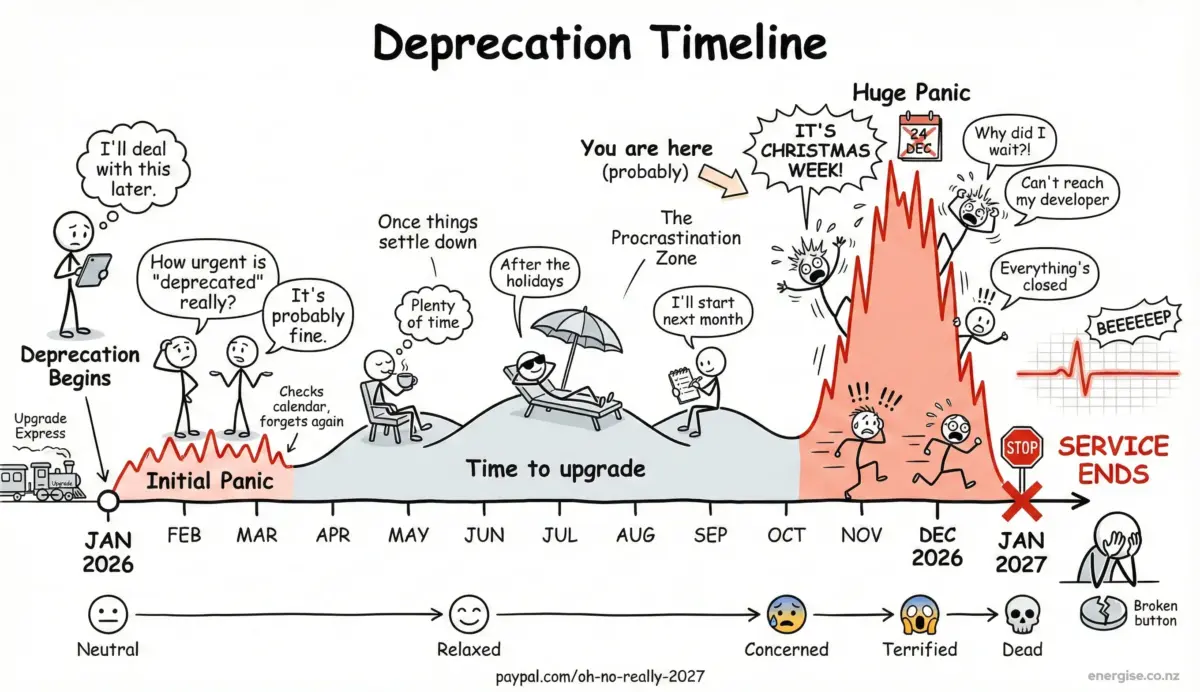
January 2026: PayPal’s Website Payments Standard (WPS) system, along with its Buy Now and Add to Cart buttons, are officially deprecated. This means PayPal stops actively supporting them.
January 2027: WPS is expected to stop working entirely. After this point, payments through these old integrations can fail, meaning customers won’t be able to pay you.
If you rely on these buttons for sales, bookings, or donations, treat this as a business continuity issue, not just a minor web tweak. The last thing you want is to lose sales without realising your payment system has quietly stopped working.
What Are “Old PayPal Buttons” Anyway?
PayPal’s Website Payments Standard was a legacy integration that’s been around for years. It works like this: you embed a PayPal-hosted button on your website, and when customers click it, they’re sent to PayPal’s site to complete the payment.
You’ve probably seen these buttons if you’ve ever bought something from a smaller business online. Common examples include:
- A single “Pay Now” or “Buy Now” button on a product or services page
- Simple “Add to Cart” buttons that use a shopping cart system under Paypals domain name
- Fixed-price payment buttons for bookings, deposits, or donations
The system worked fine for simple setups, which is why it became popular with small businesses. But technology has moved on, and PayPal is focusing on more modern, secure, and feature-rich payment options.
Who’s Most Likely Affected?
You’re probably using these old buttons if your business has:
- An older custom-built website (particularly if it’s mostly static HTML pages)
- An older WordPress site using legacy PayPal Standard integrations through plugins or ecommerce add-ons
- A website where you’ve added “just a button” for checkout, rather than a proper shopping cart or order management system
- A site that’s been running the same way for more than five years without major updates
What Happens If You Do Nothing?
As the deprecation progresses, payments can start becoming unreliable. Some transactions might work, others might not. After the shut-down date in January 2027, transactions using the old WPS system can fail completely.
Here’s what that could mean for your business:
Lost sales and enquiries: Customers try to pay but can’t complete the transaction. Many won’t bother telling you, they’ll just give up and buy elsewhere.
Damage to customer confidence: Nothing makes a business look less professional than a broken checkout. If customers hit problems when trying to pay, they’ll wonder what else isn’t working properly.
Time pressure and stress: If you wait until the last minute, you’ll be scrambling to fix it under pressure, possibly during a busy period, with limited options and higher costs.
The businesses that get caught out are usually the ones who don’t realise there’s a problem until sales mysteriously drop off.
How to Check If Your Site Uses the Legacy Buttons
Not sure whether you’re affected? Here’s a quick self-audit you can do right now.
Visual Clues (Quick Check)
Look at your website’s payment pages. If you see old-style “Buy Now”, “Pay Now”, or “Add to Cart” buttons that look like they’re just embedded on the page (rather than part of a proper shopping cart and checkout flow), you might be using the legacy system.
Code Clues (More Reliable)
If you’re comfortable looking at your website’s code (or can ask your web developer to check), search for these patterns:
paypal.com/cgi-bin/webscrin your page codecmd=_xclickor similar commands- Hidden input fields with names like
businessoritem_name
These are the telltale signs of the old Website Payments Standard buttons.
Platform Clues
If you’re using WordPress with payment plugins, check what type of PayPal integration they use. If the settings mention “PayPal Standard” or “Website Payments Standard”, assume you’re affected until proven otherwise.
Your Upgrade Options: From Quick Fixes to Full Rebuilds
 The right solution for your business depends on what you’re selling and where you want to take your online presence. Here are your three main options, from simplest to most robust.
Option 1: Replace With PayPal’s Newer Button Code
Best for: Businesses with just a few products or services at fixed prices, or simple payment needs.
This is the quickest path if you want minimal disruption. You remove the old HTML button code and replace it with updated PayPal-provided button code. The payment flow stays similar from the customer’s perspective, but you’re using PayPal’s modern infrastructure.
Pros:
- Fastest and most straightforward upgrade path
- Modern checkout experience
- Broader payment method support (varies by region and account type)
- Minimal changes to your existing site structure
Cons:
- Still not a full ecommerce system
- Limited features for inventory management, shipping rules, or order tracking
- Doesn’t solve deeper website usability or conversion issues
This option makes sense if you’re selling just one or two products, taking simple bookings, or accepting fixed-price payments, and you’re happy with your current website structure.
Option 2: Move to PayPal Checkout (API-Based Integration)
Best for: Businesses that tie payments to forms, booking systems, quote requests, or donations.
This is a more modern integration that gives you better security and more flexibility. It’s particularly useful if payments on your site are connected to form submissions (like booking confirmations, deposit payments, or custom quotes).
Benefits:
- More reliable and secure than the old buttons
- Additional payment options depending on your setup
- Better integration with form logic and workflows
- Improved customer experience
This middle-ground option works well if you’re not running a traditional online shop but still need reliable online payments as part of your business process.
Option 3: Upgrade to a Proper Shopping Cart and Checkout System
Best for: Businesses selling multiple products, planning to grow online sales, or needing professional ecommerce features.
If you’re selling more than a handful of products, or if you want to take your online sales seriously, this is the “do it once, do it properly” option. You build or rebuild your website around a real ecommerce platform (like WooCommerce for WordPress sites, or Shopify for standalone stores), then connect modern PayPal payments through their current integrations.
Key benefits:
- Professional shopping cart experience for customers
- Product variations (sizes, colours, options)
- Shipping calculations and multiple delivery options
- Stock management and low-stock alerts
- Automatic order confirmation emails
- Customer accounts and order history
- Abandoned cart recovery
- Proper sales reporting and analytics
- Multiple payment gateway options (not just PayPal)
- Mobile-optimised checkout
Why this matters: A proper ecommerce system makes your business easier to run and easier for customers to buy from. Your staff can manage products without touching code. You can see which products are selling and which aren’t. You can track where customers drop off in the checkout process. And when you want to add new features later (gift cards, subscriptions, bulk discounts), you’ve got a platform that can handle it.
This option costs more upfront, but it’s an investment in your business’s online capability. And if you’re going to the trouble of fixing the PayPal button issue anyway, it often makes sense to modernise your whole website at the same time.
How to Choose the Right Option
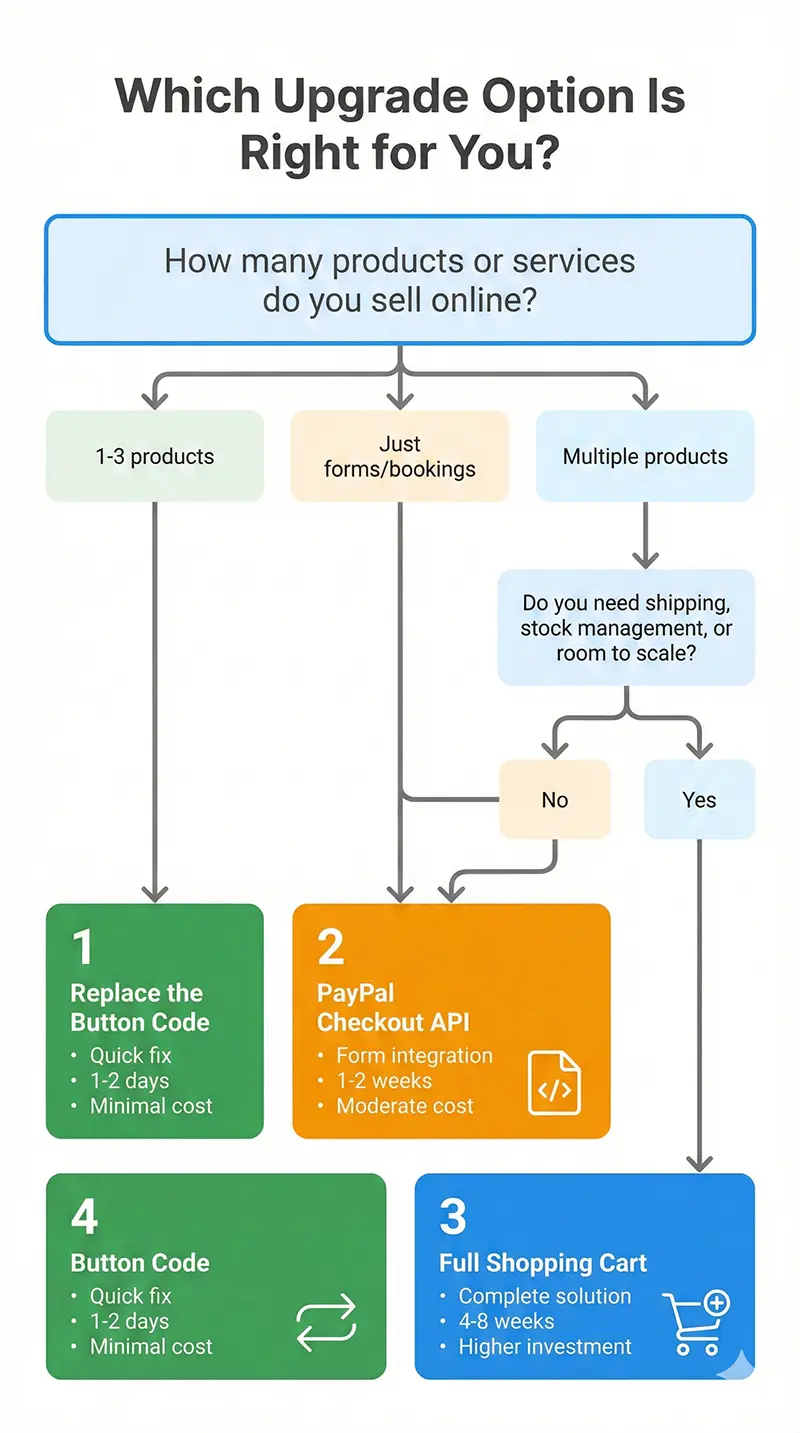
Here’s a simple decision guide:
- Go with Option 1 if you have one to three products or services, fixed pricing, and low complexity. You just need the buttons to work.
- Go with Option 2 if your payments are connected to forms, bookings, or custom workflows, but you don’t need a traditional shopping cart.
- Go with Option 3 if you sell multiple products, want to grow your online revenue, need shipping and stock management, or want professional ecommerce features.
Still not sure? Think about where you want your business to be in two years, not just where it is today.
Your Implementation Plan: A Practical Checklist
Once you’ve decided which option suits your business, here’s how to tackle the upgrade step by step:
Step 1: Map out where PayPal buttons appear – Go through your website and list every page, template, or form that includes a payment button.
Step 2: Confirm it’s the legacy system – Check the code using the patterns mentioned earlier to confirm you’re actually using Website Payments Standard.
Step 3: Choose your upgrade path – Based on the decision guide above, pick the option that fits your business needs and budget.
Step 4: Plan what needs to change – If you’re just swapping buttons (Option 1), this is straightforward. If you’re rebuilding around a shopping cart (Option 3), you’ll need to plan product migration, design updates, and checkout flow.
Step 5: Build and test on a staging site first – Never make payment changes directly on your live website. Build everything on a test site, process real test payments, and confirm everything works before going live.
Step 6: Deploy and verify – Once you’ve launched the changes, test the payment flow immediately. Check confirmation emails arrive, payments appear in your PayPal account, and the mobile checkout experience works properly.
Step 7: Monitor for the first week – Keep an eye on successful transactions for the first week after launch to catch any issues quickly.

Frequently Asked Questions
Are all PayPal buttons affected?
The deprecation specifically targets Website Payments Standard buttons (Buy Now and Add to Cart styles). Some other button types, like donation or subscription buttons, may work differently depending on how they were implemented. If you’re unsure, it’s safest to check.
Will my existing buttons stop working immediately?
No, but you can expect limited support during the deprecation period through 2026, with the risk of failures increasing as you get closer to January 2027. It’s better to upgrade on your schedule than to be forced into emergency fixes later.
Can I just swap the button code and keep everything else the same?
Sometimes yes (that’s Option 1), and it’s fine for simple payment needs. But if you want better product browsing, a proper shopping cart, smoother checkout, or room to grow, it’s worth considering a more comprehensive upgrade. Often the time and money spent on a basic fix could be better invested in a proper solution.
What if I’m not technical?
That’s fine, this is exactly the sort of project where working with a web developer or agency makes sense. The important thing is to understand what needs to happen and make a decision before you’re under time pressure.
How much will this cost?
It varies wildly depending on how many buttons need to be replaced. Swapping button code (Option 1) might be a under $100 to few hundred dollars. Implementing better payment integration (Option 2) could be a few hundred dollars to $3,000. A full ecommerce rebuild (Option 3) could range from $3,000 to $15,000 or more, depending on the size of your product catalogue and what features you need. The key is to match the solution to your business needs.
What You Should Do Next
Don’t wait until you’re in the panic zone. If you’re reading this in early 2026, you’ve got plenty of time to handle this properly. But leaving it until late 2026 means you’ll be competing with everyone else who left it late, and you’ll have less flexibility on timing and budget.
Here’s what we recommend:
If you’re not sure what your site is using: Get a quick technical audit. We can check a website in about 20 minutes and tell you exactly what payment system you’re using and what needs to change.
If you know you’re affected but haven’t decided on a solution: Have a conversation about where you want to take your online presence. This might be the nudge you needed to finally rebuild that outdated website and create something that actually helps you grow.
If you’re ready to upgrade: We can help you choose the right path, implement it properly, test everything thoroughly, and give you a website and checkout experience that works reliably and looks professional.
The January 2027 deadline might seem far away, but web projects have a habit of taking longer than expected. The businesses that plan ahead get better results and less stress.
Further Reading and Sources
For more technical details about the deprecation and upgrade options:
- PayPal Developer Upgrade Hub (WPS overview)
- PayPal guide for replacing simple Buy buttons
- PayPal guide for hosted shopping cart upgrades
- Gravity Forms documentation on PayPal Standard end-of-life
Need help working out your next steps? Get in touch and we’ll help you figure out the right upgrade path for your business.